
When a guest joins your WiFi and the login page never appears, start with one question: does the same thing happen on a second, unauthenticated device? That comparison tells you whether to investigate one phone or your venue’s shared connection path.
A WiFi symbol only confirms part of the journey. The device still needs a usable network address, a way to discover the portal, access to the login page, and permission to reach the internet after submitting it. Rebooting every access point before identifying the failed step can interrupt working guests and erase useful evidence.
This checklist is for a venue with an existing captive portal. It helps your team narrow the fault without asking guests to weaken their security settings.
Put this guide to work
Free worksheets, campaign templates and a venue growth calculator. No email gate.
Start with a controlled comparison
Use a venue-owned test device where possible. Record the guest network name, time, approximate location, device type, and what appears on screen. Avoid photographing a guest’s personal messages or a completed login form.
Then compare two devices on the same guest network, near the same access point:
- Neither device gets a login page: investigate the guest network and portal path first.
- One device gets a page and one does not: compare connection state and operating-system behavior.
- Both get a page but cannot submit it: investigate page dependencies or form handling.
- Both submit successfully but remain offline: move to controller authorization and internet access checks.
Make sure your comparison device actually needs to log in. A device with an active guest authorization may go straight online. Disconnecting and reconnecting does not necessarily end that authorization. Ask your administrator to check the test device’s current session, rather than repeatedly forgetting the network and assuming it is a new test.
Also confirm that your test is using WiFi. Mobile data can make a page appear to work while the guest network is still broken. On a venue-owned device, temporarily turn mobile data off for the test, then restore it.
The iPhone and iPad check
Open Settings, select Wi-Fi, and confirm the exact venue network name. Apple’s documented route is to select the network and wait for the login screen, or open the information button beside the network and choose Join Network when available. Apple’s captive-network instructions
If the guest previously chose “Without Internet,” that matters: Apple says this keeps the device associated but turns off Auto-Login for the network. Return to the network’s details instead of assuming the portal service is down. Auto-Join and Auto-Login perform different jobs; joining the radio network is separate from showing or completing its login flow.
For a repeatable venue test:
- Check the selected SSID against the name your team provides to guests.
- Use the network’s sign-in or join control if it is available.
- Note whether the login window is absent, blank, or displaying an error.
- Compare with your second test device before changing anything else.
Do not make disabling Private Wi-Fi Address your standard fix. The current address is what your controller must authorize. Changing it mid-test can change which client record you are investigating.
The Android check
On Android, check for a notification inviting the user to sign in to the WiFi network, as well as the network’s details in Settings. Names and placement vary by manufacturer and Android version, so train staff to look for the sign-in action rather than memorize one screenshot.
Android distinguishes a network configured for internet access from one whose internet access has actually been validated. It can show a captive-portal notification while the WiFi connection itself is established. Android’s network-state documentation
If the notification is missing, reconnect once and compare with another device. Record whether the phone stays connected or switches away. If the portal opens but an external authentication window fails, capture that precise stage for your provider.
An Android-only problem is not proof that the device is at fault. Google documents that probe-based detection can fail when a network incorrectly permits or blocks the probe rather than handling it as intended. Networks with supported captive-portal signaling can use a more explicit discovery mechanism, but support must be checked for the installed equipment and software. Android captive-portal detection
Do not ask a customer to turn off an employer-managed VPN, remove a security profile, or change private DNS settings. Compare with a venue-owned device and let the guest’s IT team handle managed-device restrictions.
The Windows check
Confirm the laptop is connected to the guest SSID, then open the network status or any sign-in prompt. Use the normal browser if Windows offers a link to complete the connection.
Windows uses the Network Connectivity Status Indicator, or NCSI, to assess connectivity. Its result depends on network probes, so “No internet” is a useful symptom rather than a complete diagnosis. Microsoft documents how an unexpected response to an active HTTP probe can identify a captive portal. Microsoft’s NCSI overview
If a managed laptop fails while your test phone works, record the browser message and whether a proxy or managed connection is in use. Do not edit Windows registry settings or disable its firewall to make the status icon change.
Your administrator can inspect the laptop’s assigned address, gateway, and DNS server. No usable address, or an address from an unexpected network, sends the investigation back to the guest VLAN and address-assignment service. That failure occurs before the login page can do its job.
If the automatic window stays closed
Use your portal provider’s documented manual sign-in route, if it has one. A bare portal homepage may open without the client information needed to authorize the device, so do not promise that any copied portal link will complete login.
For an administrator-led detection test, a deliberately plain HTTP diagnostic page can help reveal whether the network generates a redirect. Use a venue-controlled test endpoint that contains no personal information. The eventual login page must use valid HTTPS before the guest submits information.
Do not use a banking page or another sensitive HTTPS destination as a redirect test. If any page displays a certificate warning, stop and report the hostname and warning. Asking guests to accept the warning is not a troubleshooting step. The IETF’s captive-portal architecture explicitly preserves certificate validation rather than requiring security exceptions. Captive Portal Architecture, RFC 8952
If every device fails, identify the first missing result
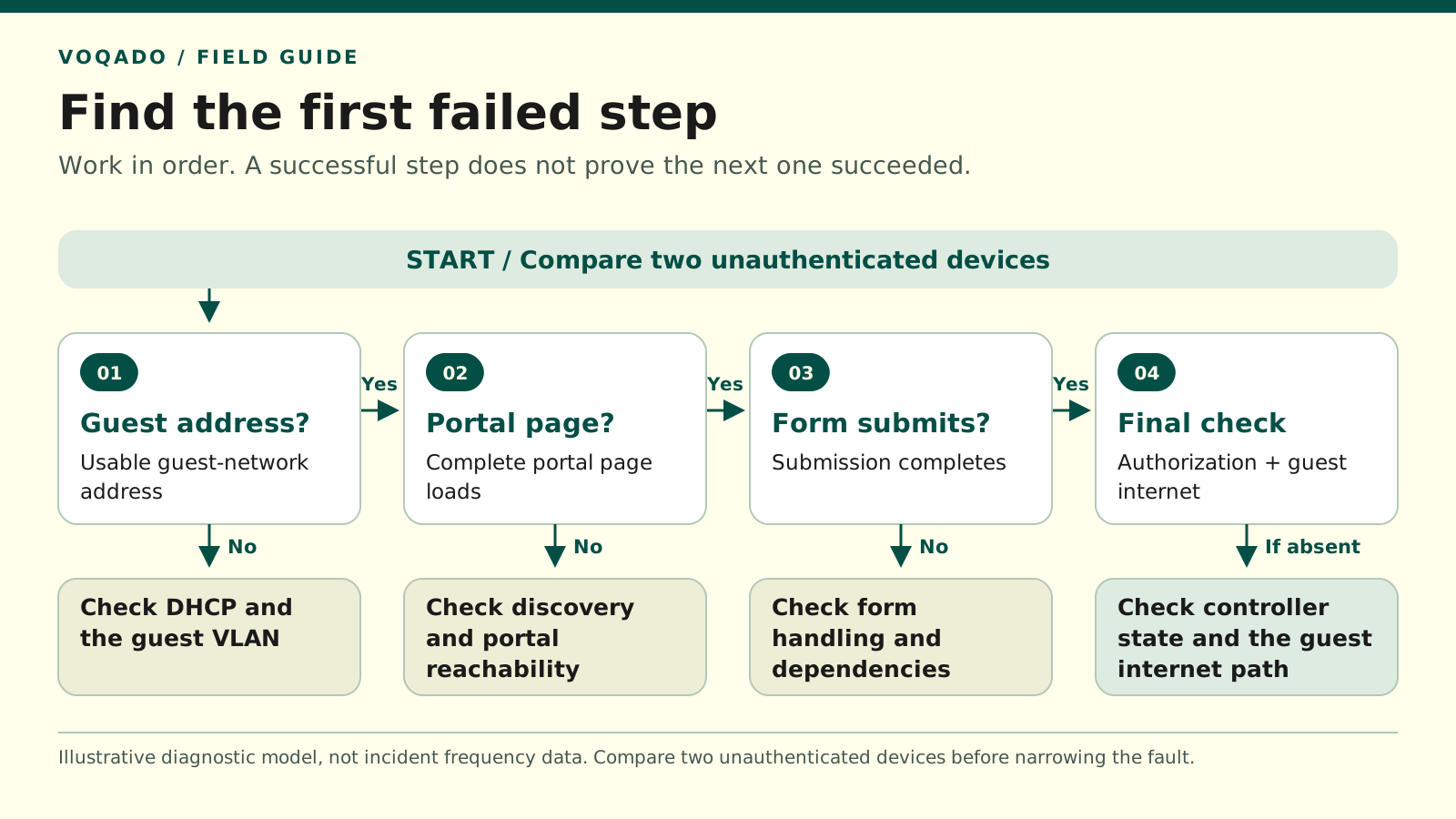
Illustrative diagnostic model: each observed result chooses the next check. Based on Apple, Android, Microsoft and IETF descriptions of captive-portal discovery; it does not represent measured incident frequencies.
| Observation | Next check |
|---|---|
| No usable guest address | DHCP and guest VLAN |
| Address works, portal absent | Discovery and portal reachability |
| Page loads, form fails | Form handling and dependencies |
| Form succeeds, internet fails | Current client authorization and guest internet path |
Work through these checks with whoever manages your Omada or UniFi network:
1. The device has a usable connection. Confirm its current guest-network address, gateway, and DNS settings. Compare them with your documented guest network, not with the staff network.
2. The network produces the correct portal destination. Check that the guest SSID is bound to the intended portal policy and that the access point has the expected configuration. A device already authorized is not a valid test of this step.
3. An unauthenticated device can load the destination. The portal host and required resources must be reachable under the pre-authentication policy. A page that works over mobile data or staff WiFi has not passed this test.
4. The page can complete its form. A logo loading does not prove that the form’s script or submission endpoint is reachable. Record the failed request or visible error without collecting passwords, cookies, or tokens.
5. The controller grants access to that device. Confirm the current client’s authorization state after submission. A success message on a website is insufficient evidence by itself.
Keep each test focused. Change one approved setting at a time, record it, and repeat the same test. Avoid broad allow rules that happen to make the page work while opening access to unrelated destinations.
A worked example for the shift handover
An illustrative restaurant test looks like this: an iPhone and Android phone both join the guest SSID, both show a sign-in window, and both get a blank page. The same portal loads on mobile data.
That evidence moves the investigation away from “iPhone popup trouble.” It points toward the route from an unauthenticated guest to the portal. The administrator checks DNS, the allowed portal hostname, HTTPS reachability, and the first blocked page resource. They keep guest isolation in place throughout.
Contrast that with a single laptop failing while both phones complete login and browse successfully. The laptop’s connection state and managed network policy now deserve attention before the venue changes a working portal.
What to send support
A useful ticket includes the time and timezone, SSID, location or AP, operating-system versions, controller version, and the last successful step. Add a redacted error screenshot and say whether the second device reproduced it. Send client identifiers only through your provider’s approved support channel, and never attach raw authentication tokens or session cookies.
VoqadoWiFi operates as an external portal for Omada and UniFi, while the network equipment enforces guest access. Its hardware integration guide explains that division. Use the checklist above to establish which side needs attention before changing the configuration.
Download the incident worksheet
Open the printable guest WiFi diagnostic worksheet. Use one worksheet per incident and keep guest personal information out of the notes.
Share this article