
If a UniFi guest sees “connected” after completing your captive portal but cannot browse, check the current client’s authorization state before changing the portal design. A completed form, an accepted authorization request, and usable internet access are three separate results.
The quickest diagnosis establishes which result is missing. This checklist assumes your guest network already exists and focuses on the failure after a device joins it. Menu names, API methods, and firewall layouts vary across UniFi Network releases and controller types; use the documentation that matches your installation.
Define what “connected” means in this incident
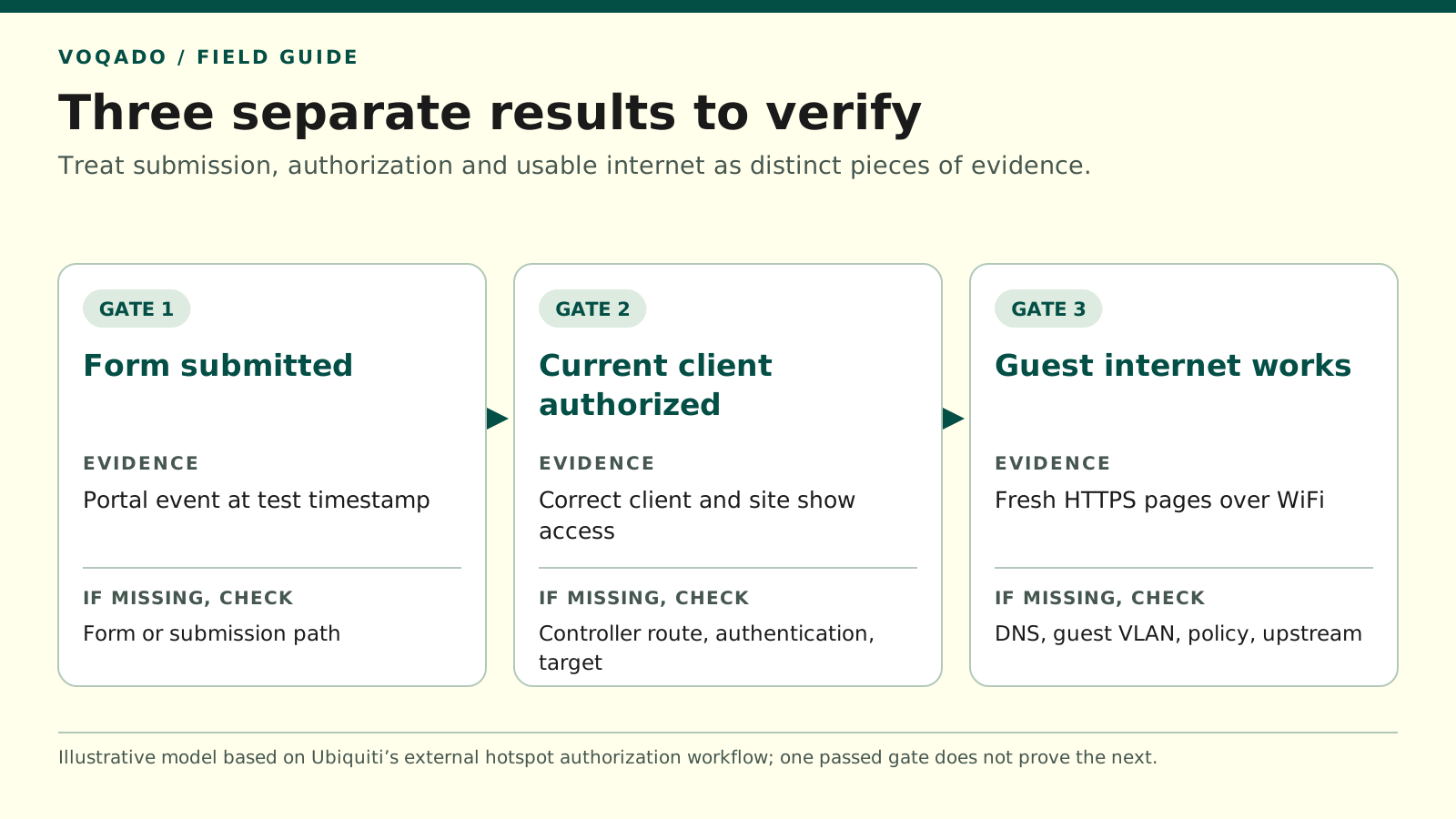
Illustrative troubleshooting model informed by Ubiquiti's external hotspot authorization workflow. Passing one gate does not establish that later gates passed.
Put this guide to work
Free worksheets, campaign templates and a venue growth calculator. No email gate.
| Gate | Evidence | If missing |
|---|---|---|
| Form submitted | Portal submission event | Check form and submission path |
| Client authorized | Matching controller client state | Check controller connection and target |
| Internet works | Fresh HTTPS browsing over guest WiFi | Check DNS, VLAN, policy and upstream |
Ask the guest or staff member what they actually saw:
- The device joined the WiFi network but never showed a portal.
- The portal loaded, but the submit button failed.
- The portal displayed success, but websites did not open.
- Websites opened initially, then stopped after a repeatable interval.
- Websites work, but the operating system still says there is no internet.
These observations lead to different checks. Record a test timestamp and use a venue-owned device so you can follow the same client through the investigation. Verify that mobile data is not carrying the test traffic.
Ubiquiti’s external hotspot workflow describes an initially unauthorized guest, followed by an authorization operation and a change to the client’s authorized state. That final state change is the key evidence to look for; a page saying “thank you” is not the controller’s confirmation. Ubiquiti external hotspot authorization
Check 1: Follow the right client in the right site
Open the client record for the device currently testing. Match its current network address and WiFi MAC address, the SSID, access point, and connection time. Do not identify it solely by a familiar device name.
A phone using a private WiFi address may not present its factory address to the network. If you use an old client record from a previous test, an apparently successful authorization can be irrelevant to the device in front of you.
Next, verify that the portal integration targets the site serving this SSID. The venue’s friendly display name is not necessarily the identifier expected by its integration. Avoid entering “default” simply because an online example uses it.
In VoqadoWiFi, the documented UniFi Test Connection workflow lists the sites visible to the configured account and lets you select one. Use the returned site information rather than transcribing a display label from memory. VoqadoWiFi’s UniFi integration
Decision: if the current client remains unauthorized after submission, continue with the authorization path. If it is authorized, skip to the guest internet path below.
Check 2: Separate portal submission from controller authorization
Your portal provider should be able to distinguish these events:
- The guest submitted the form.
- The portal attempted to reach the controller.
- The controller authenticated the integration.
- The request targeted the current client and correct site.
- The controller accepted the authorization.
- The current client shows the expected access state and expiry.
Ask for the first failed event and its timestamp. “The API is down” is too broad to act on. A name-resolution failure, a connection timeout, an authentication rejection, and a rejected client identifier require different fixes.
Run the provider’s connection test, but understand its scope. A test that can reach the controller and list sites does not by itself prove that a live guest has been authorized. Finish with a real test device and verify the resulting client state.
When collecting evidence, retain status codes and sanitized error text. Do not paste controller passwords, API keys, cookies, or token-bearing URLs into a shared incident document.
Check 3: Verify the integration method and network route
UniFi OS consoles, older self-hosted Network Servers, and newer documented API integrations do not all use interchangeable authentication methods and paths. Identify the method your provider supports before following a sample command.
Record the controller type, Network application version, configured base URL, and whether a reverse proxy or tunnel sits in between. Have the administrator confirm that the integration reaches the intended application through the approved route.
If the controller works from a staff laptop inside the venue but the external portal cannot reach it, those are different network paths. Check external DNS, routing, proxy logs, and the configured destination. A successful administrator browser login can also use a human sign-in flow that the server-to-server integration does not use.
A proxy returning its own login page may appear as a successful HTTP response while still preventing the expected API exchange. Inspect the response type and destination, not just the status code. Preserve the required request paths, headers, and session behavior for the supported integration.
Do not solve this by exposing every controller port publicly, disabling certificate checks, or removing access controls. Ask the network administrator and portal provider to agree on the minimum supported path.
Check 4: If authorized, test the guest internet path
Once the current client is authorized, stop repeatedly editing the splash page. Work outward from the guest network:
Address assignment: Does the client have an address, gateway, and resolver appropriate to the intended guest subnet? Compare a failed device with a working device on that same subnet.
Guest VLAN path: Does the relevant VLAN reach the correct gateway across the AP uplink and switch ports? If the problem happens only near one AP, compare its uplink configuration with a working AP before changing the whole site.
DNS: Can the client resolve the names it needs through the resolver actually assigned to it? Record failed names and resolver responses. A cached page loading is not a sufficient DNS test.
Routing and policy: Do the applicable guest-network rules allow the intended internet traffic after authorization? Check rule order and logs without removing isolation from POS terminals, payment equipment, or back-office systems.
Upstream connectivity: Does a controlled test from the same guest subnet reach several independent HTTPS websites? A working staff network does not establish that guest routing works. One unavailable website does not establish an internet outage.
These are diagnostic questions, not a recommendation for a universal firewall rule. Ubiquiti distinguishes a hotspot applied to an SSID from a hotspot applied to an entire network, with its current network-level guidance tied to zone-based firewalling. Identify which model your site uses before interpreting its policies. UniFi hotspots and captive portals
Check 5: If access stops later, compare timestamps
A session that initially works and then fails has a useful timeline. Record the initial authorization time, observed loss of access, configured authorization expiry, and any applicable data limit.
Then determine whether the client became unauthorized, disconnected from WiFi, or remained connected and authorized while traffic failed. Those outcomes separate expiry from radio, roaming, routing, or upstream issues.
Run the same test while stationary before walking between access points. If a stationary device fails at a consistent interval, investigate session policy first. If failure tracks movement between particular APs, compare their network path and client events. This comparison is a test strategy, not proof that either cause applies.
Do not lengthen all guest sessions indefinitely as a first response. Confirm that the integration’s requested duration and the controller’s resulting expiry match the venue’s intended policy.
Check 6: If browsing works but the status says offline
Test a few fresh HTTPS destinations before declaring the service unavailable. Windows’ connectivity indicator uses probes; Android also distinguishes configured internet access from validated connectivity. Filtering that affects those checks can produce a different result from an ordinary browser request. Microsoft NCSI and Android network capabilities
Have the administrator investigate the affected operating system’s checks in the appropriate pre- and post-authorization states. Do not indiscriminately allow every detection endpoint before login: making a device think it is already online can interfere with portal discovery.
A worked incident that avoids the wrong fix
Consider this illustrative test: two phones can load the form, both receive a success screen, and both remain unauthorized in the correct UniFi site. Their addresses and guest VLAN are correct.
That evidence prioritizes the portal-to-controller authorization exchange. Replacing APs or redesigning the form would not address the missing state transition. The next useful result is the authorization error and whether it reached the intended controller.
Now change one observation: the current clients are authorized, but DNS queries from the guest subnet time out. The investigation moves to the resolver and guest-network policy. The portal has reached its authorization step; the guest network still needs repair.
Verify the fix from a fresh session
Repeat the original test with a device confirmed to be unauthorized. Check portal display, form completion, the correct client becoming authorized, and fresh browsing over WiFi. Where the incident involved expiry or roaming, repeat that part too.
Save the version, relevant configuration change, test time, and outcome for the next shift. For VoqadoWiFi deployments, use the UniFi integration guide to confirm the supported controller setup, then use this checklist to prove the whole guest journey works.
Share this article