
When an Omada external captive portal does not redirect, identify the last step that actually worked. “The portal is broken” might mean the device never received a network address, the controller sent it to the wrong destination, the login page could not load, or submission never led to authorization.
Treat those as separate incidents. A small amount of evidence at each boundary is more useful than repeatedly changing the external portal URL.
This guide is for an existing Omada deployment. It does not replace your version-specific setup instructions. Use a venue-owned test device, preserve the current configuration, and ask your network administrator to handle policy changes.
Put this guide to work
Free worksheets, campaign templates and a venue growth calculator. No email gate.
Understand the two paths you are testing
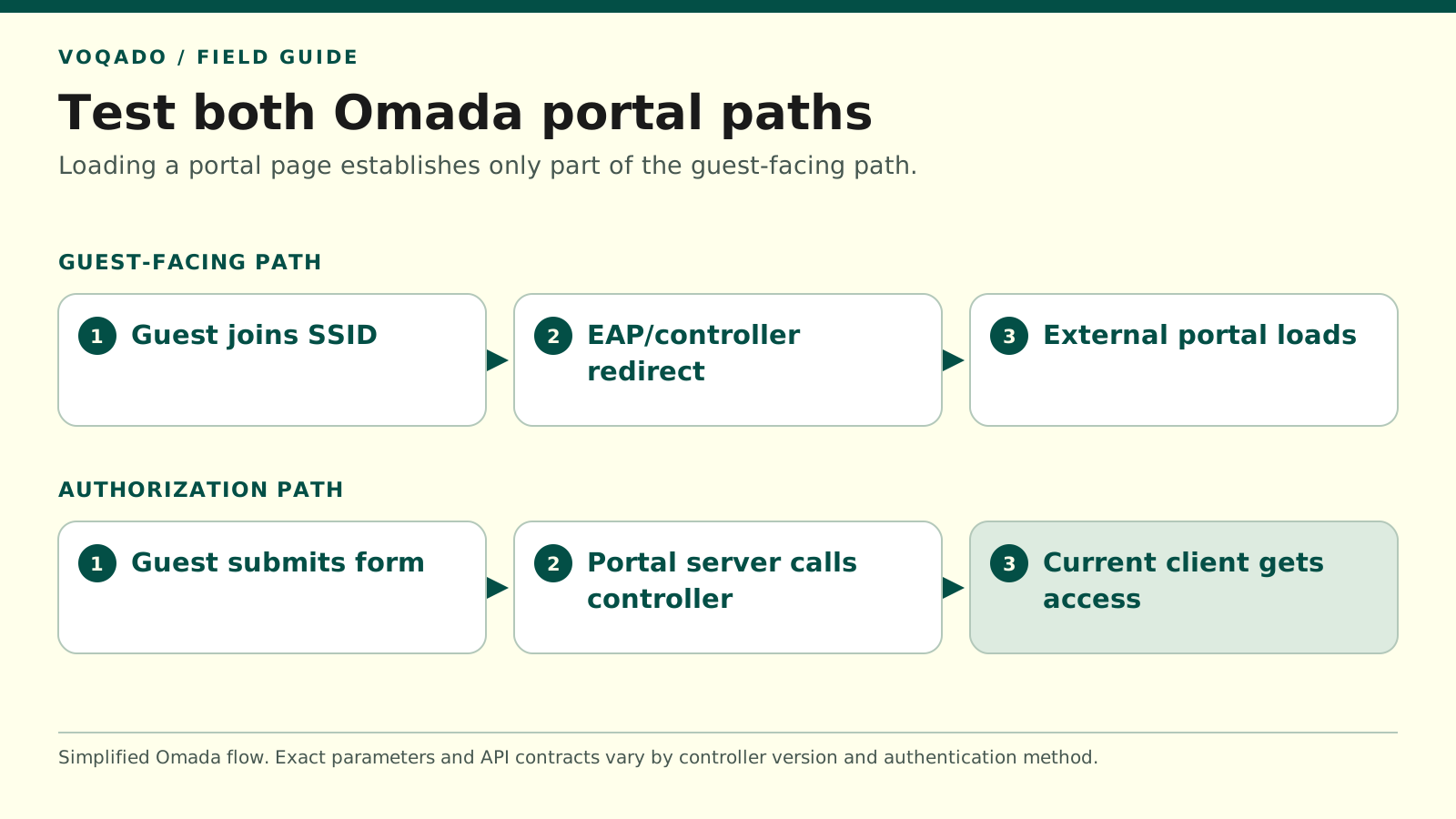
Simplified diagnostic model based on Omada's documented external-portal flow. Exact parameters and API contracts depend on the controller version and authentication method.
| Path | What to verify | What success does not prove |
|---|---|---|
| Guest-facing | Unauthenticated device reaches redirect and complete portal page | Portal server can authorize the guest |
| Authorization | Portal server reaches controller and current client gains access | Guest DNS, routing and upstream all work |
The first path is guest-facing: the device joins the guest network, reaches the portal redirect, and loads the external login page. The second is server-side: the external portal communicates with the controller so the correct client can receive access.
TP-Link’s documented external-portal flow carries connection information through the redirect to the external service. That information must survive the journey so the service can authorize the intended client. Page delivery and authorization are distinct parts of the workflow. Omada external-portal documentation
This distinction explains two common observations:
- A portal works over mobile data but fails on guest WiFi. Its public website may be healthy while the unauthenticated guest path cannot reach it.
- A portal loads and accepts the form, but internet access never starts. Guest-facing delivery may work while the server-to-controller path fails.
Neither observation proves the exact cause. Each tells you where to collect the next piece of evidence.
Step 1: Write down the version and topology
Before troubleshooting, record:
- Controller type and exact software version.
- EAP models and firmware versions involved in the test.
- Guest SSID, intended VLAN, and portal policy.
- Whether the controller and external portal are local or hosted elsewhere.
- Any reverse proxy, tunnel, or separate router on the relevant paths.
- Whether the issue affects every AP, one AP, or one device type.
Version matters. Omada’s newer official guide explicitly distinguishes Controller v6.2.10 and above from v5.0.15 through v6.2.0, and describes changes to the external-portal API parameters. Do not use an old code sample as a universal contract. Omada v6.2.10-and-above guide
Also verify the selected authentication method. An external portal that handles authorization and a RADIUS setup using an external web page have different responsibilities. Similar labels in a controller menu do not make their example code interchangeable.
If a sample and the installed controller’s behavior disagree, send the version, method, and sanitized request details to the provider. Do not try random endpoints against a live guest service.
Step 2: Confirm the test client should see a portal
Find the device’s current client record. Match the current WiFi address, SSID, access point, and connection time. Check whether it already has valid authorization or is covered by an exemption.
A returning authorized device may go straight online. That is not a failed redirect. Disconnecting and reconnecting is not proof that its authorization ended.
Use a test device confirmed to be unauthorized, or ask the administrator to end only the designated test client’s session through the supported workflow. Avoid clearing all guest sessions during service.
If the device has no usable address, investigate DHCP and the guest VLAN before the portal. Compare the assigned address, gateway, and resolver with your network plan. A device can associate with an AP while the upstream guest network remains misconfigured.
Step 3: Find the first redirect destination
On a controlled test client, start a new portal attempt using the operating system’s sign-in action. Your administrator can record the redirect chain with browser developer tools where available, or appropriate network logs.
Keep the investigation concrete:
- Did the device request a destination while unauthorized?
- Did the guest network respond with a portal-related redirect?
- Which hostname, path, and port did the device try next?
- Which request was the first to fail?
If there is no redirect, confirm that the intended portal policy applies to this SSID and client. Check that the relevant AP received the expected configuration. When only one AP reproduces the failure, compare its configuration and uplink path with a working AP.
Use a deliberately non-sensitive HTTP test endpoint only when your administrator needs to inspect legacy redirect behavior. The page where guests enter information must still have valid HTTPS. Never ask someone to bypass a browser certificate warning to reach the portal.
Step 4: Test reachability from an unauthorized guest
The portal’s hostname needs to resolve and its page needs to load before the guest has normal internet access. Test from that restricted state. An administrator loading the same URL from the office network is checking a different path.
Check the exact external portal address against the location-specific value supplied by the provider. Look for a wrong venue path, an unexpected hostname redirect, a mistyped scheme, or a stale URL from a previous deployment.
Then inspect the permitted pre-authentication destinations. Add or correct only the documented destinations needed for the chosen integration. Do not expand the allowlist to broad cloud-provider ranges simply because a missing resource is hosted there.
Distinguish these outcomes:
- Name does not resolve: investigate the guest resolver and DNS policy.
- Connection times out: investigate routing and relevant access policy.
- HTTPS certificate warning: repair the hostname, certificate, or certificate chain.
- HTML loads but the page is incomplete: identify the first required resource that fails.
- Page loads normally but submission fails: move to form handling and authorization.
A redirect from one portal hostname to another can create an extra dependency. Record the complete chain rather than assuming that permitting the first name permits the final page.
Step 5: Preserve the current connection information
The external service needs the information generated for the actual connection. A bare bookmarked portal URL can display a page without carrying the context necessary to authorize that client.
The older Omada guide describes preserving the redirect query information, using a Hotspot Operator account for its documented login flow, and retaining the controller’s session cookie and CSRF token for subsequent requests. It also identifies a cookie-name change from v5.11. These are integration checks for your provider, not values to copy into a public support post. Omada’s earlier external-portal API guide
Ask the provider to compare the received connection context with the current controller client. A proxy rewrite, encoding error, or application redirect that drops parameters is a hypothesis to test, not a reason to disable the proxy.
Redact client identifiers where practical before sharing diagnostics. Always remove passwords, authorization headers, session cookies, and tokens. Keep the original evidence in the approved support system only if it is needed and appropriately protected.
Step 6: If the form submits, verify authorization separately
Run the integration’s connection test and inspect the first failed server-side step. Can the external service reach the intended controller? Does its supported login method succeed? Does the authorization request refer to the right connection? Does the current client become authorized?
A controller reachable at a private address from your office laptop may not be reachable from a hosted portal. A browser login through a remote-management website is also not proof that the integration has a working API route.
Have your administrator and provider confirm the approved connection method. Keep certificate validation and access controls in place; broad public exposure is not an acceptable shortcut.
Once the controller shows the current client as authorized, test actual guest internet access. DNS, VLAN routing, firewall policy, and upstream service still need to work. At that point, repeatedly changing the external portal address is unlikely to be the most useful next test.
A worked example of a misleading “redirect failure”
Imagine this illustrative incident: both test phones show the venue’s portal, the logo and form load, and submitting produces a success message. The controller still lists both current clients as unauthorized.
The redirect has already delivered the page. Focus on the authorization exchange and its response. Ask whether the integration can reach and authenticate to the right controller, then whether its client request is accepted.
In a second scenario, both devices are sent to the intended hostname but time out before any page appears. Begin with pre-authentication reachability. Checking email validation or session duration would skip the failed step.
Prove the repair before closing the ticket
Repeat the test from a confirmed unauthorized session and record four results: correct portal destination, complete page load, current client authorization, and fresh internet browsing over guest WiFi. If the issue affected one AP, repeat the test there as well as at a known-good location.
VoqadoWiFi’s Omada integration guide describes its external-portal connection and Test Connection workflow. Use the location’s supplied settings, then verify both paths above. A green connection test and a successful guest login together provide stronger evidence than either one alone.
Share this article