

Open the portal settings on a TP-Link Omada controller and the first decision is the Authentication Type. It decides what a guest has to do before the network lets them online, who serves the login page, and which timeout setting controls how long they stay signed in.
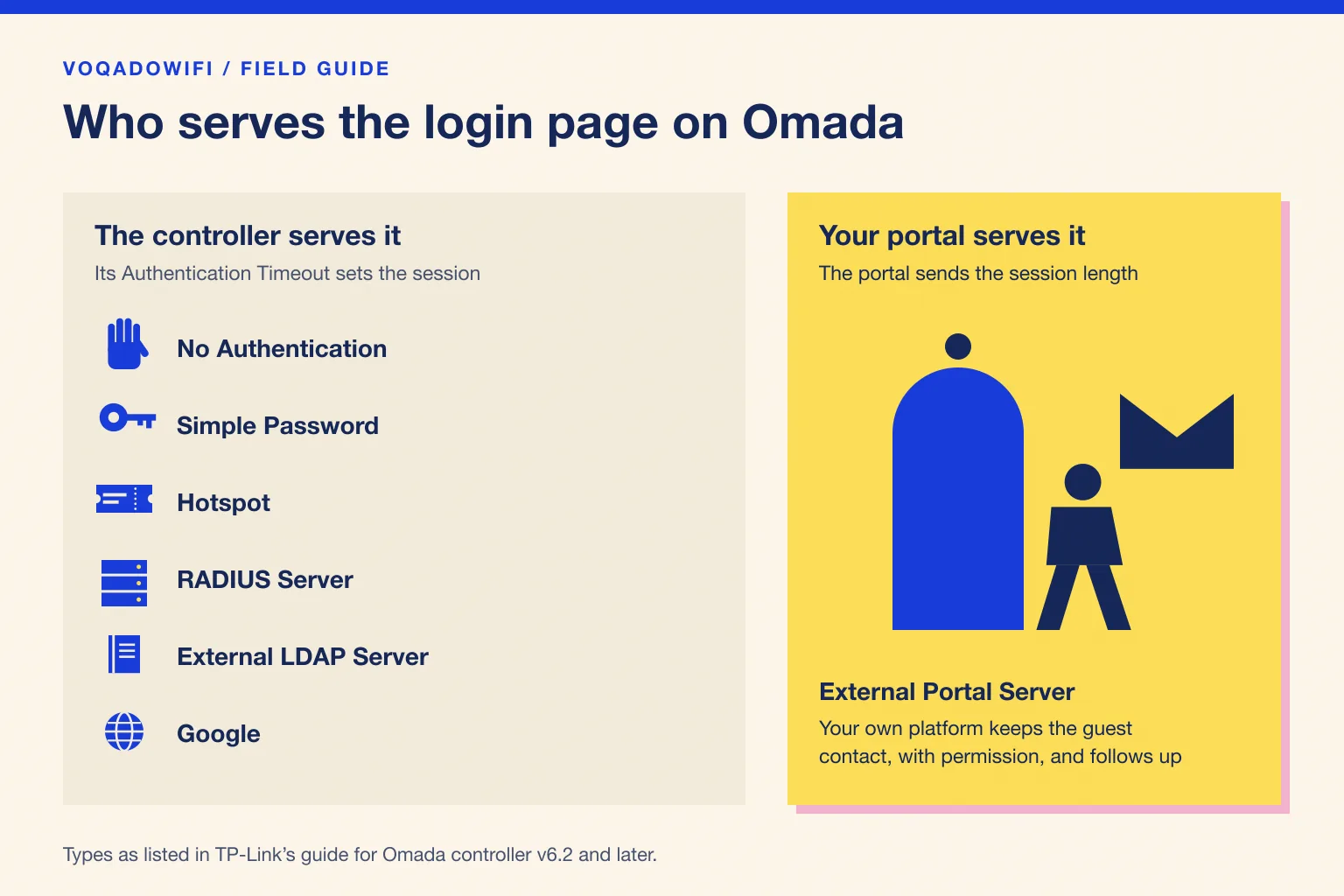
TP-Link's guide for controller v6.2 and later lists seven types: No Authentication, Simple Password, Hotspot, RADIUS Server, External LDAP Server, External Portal Server and Google (TP-Link Omada, portal authentication v6.2 and later, checked October 2026). The guide for v5.9 to v6 describes the same family without Google (TP-Link Omada, portal authentication v5.9 to v6), so check your controller version before you go looking for an option.
This article explains each type in venue terms: what the guest sees, where it fits, and what it means for you after the guest has left.
Put this guide to work
Free worksheets, campaign templates and a venue growth calculator. No email gate.
The seven types at a glance
| Type | What the guest does | Good fit |
|---|---|---|
| No Authentication | Taps Log In on the preset page | A quick terms page |
| Simple Password | Types one shared password | Small venues, staff led access |
| Hotspot | Uses a voucher, account, SMS code, RADIUS login or short form | Hotels, coworking, events |
| RADIUS Server | Signs in with credentials held on a RADIUS server | Members and staff with accounts |
| External LDAP Server | Signs in against a company directory | Offices, not guest WiFi |
| External Portal Server | Uses a login page you host elsewhere | Venues that want a guest relationship |
| Signs in with a Google account | Guests already signed in to Google |
No Authentication
Guests get online after tapping the Log In button on the preset login page, with no credentials. That still gives you a page in front of the internet, which is enough to show your terms and your name. TP-Link also offers a Daily Limit for this type only, which stops a device signing in again on the same day once its session has ended.
Use it when you want a clear terms page and nothing else. It keeps no way back to the guest.
Simple Password
Every guest types the one password you set. It is the same idea as a password on the table card, moved onto a login page. It is fast, and it is easy for staff to read out. The password travels, though: once it is in a photo of the menu, it works from the pavement too, and you cannot tell one guest from another.
Hotspot
Hotspot is a group of methods, and you can switch on more than one:
- Voucher: a unique code the controller generates for a set duration, which you can print and hand out.
- Local User: a username and password for an account created on the controller.
- SMS: a verification code sent to the guest's phone.
- RADIUS: credentials held on a RADIUS server.
- Form Auth: a short questionnaire you write.
Vouchers are the one most venues reach for. They suit a hotel that hands a code over at check in, a coworking space selling day passes, or an event with a ticketed list, because each code can be rationed and runs out on its own. The cost is the printing and handing out, and someone has to deal with lost codes at the bar.
SMS and Form Auth ask the guest for something, but they are built to grant access, not to build a guest list you can email, record marketing permission against and export. If that is what you want, read the External Portal Server section below.
RADIUS Server and External LDAP Server
Both check a username and password against a system you already run. RADIUS suits members or staff who each have an account; TP-Link notes that a built in RADIUS server has been available since v5.12, except on the OC200, the cloud based controller, Fusion Gateway and ER7212PC. LDAP checks against a company directory and belongs on an office network, not in front of restaurant guests.
Guests sign in with a Google account, and TP-Link notes it applies to SSIDs only. It is quick for anyone already signed in to Google on their phone. Guests without an account need another way in, and Google becomes part of every login. The same trade offs we described for social sign in when replacing a Facebook WiFi login apply here.
External Portal Server
With this type, Omada stops serving its own login page and sends guests to a page hosted somewhere else, which you name by IP address or URL. That page decides what to ask, records the answer, and then tells the controller to let the device online.
This is how VoqadoWiFi works on Omada. The portal URL is https://www.voqadowifi.com/portal/your-venue-slug, guests sign in with an email address and a first name, and the marketing choice is a separate, unticked box stored with its wording, time and source. Only www.voqadowifi.com and voqadowifi.com need to be reachable before login, as listed on the walled garden page. The Omada setup hub has the steps for each controller.
How the type changes your session settings
TP-Link's v6.2 guide lists the Authentication Timeout for No Authentication, Simple Password, Hotspot, RADIUS Server, External LDAP Server and Google: when the set time is reached, clients sign in again. With External Portal Server the portal sends a session length each time it authorizes a guest; on VoqadoWiFi that is 8 hours unless the location is set otherwise.
So when you switch types, the place you set the session moves with it. Our guide to choosing a guest WiFi session timeout gives starting points by venue type.
Which type should your venue use?
- Restaurants, cafes, bars and lounges that want guests back: External Portal Server with an email login.
- A plain terms page with no follow up: No Authentication.
- Hotels and coworking spaces rationing access: Hotspot vouchers for the rooms or desks, and an email login for the lobby, restaurant or bar if you want a relationship with non resident guests.
- Members or staff with existing accounts: RADIUS Server, on a network kept separate from the guest one.
If you run UniFi rather than Omada, the same choice looks slightly different; our comparison of UniFi hotspot vouchers and email login covers it.
Before you switch types
- Note what is live now: the authentication type on every portal and the networks each portal applies to.
- Test the new type on a spare guest network with a phone you control, on both an iPhone and an Android device.
- Check the redirect if you move to External Portal Server. If the page never appears, our guide to an Omada external portal that is not redirecting finds the broken step.
- Switch during a quiet hour, then check that a real guest can get online before you leave it.
The short version: every built in type is a way of granting access. Only External Portal Server hands the login page to a platform that can keep the guest relationship for you, with permission.
Get the free Guest WiFi Growth Kit
A diagnostic worksheet, signage copy guests can follow, a campaign brief and a monthly scorecard. Yours to print and share with your team.
Share this article