

If your guest WiFi login once ran through Facebook, it no longer does. In a notice dated 25 May 2023, D-Link relayed Meta's announcement that Facebook WiFi would not be available after 12 June 2023, dropped it from its Nuclias management software and told customers to move to other login methods (D-Link, Facebook WiFi end of support). EnGenius gave its customers the same date and asked them to change the captive portal type on every network that used it (EnGenius, discontinuation notice).
Plenty of venues responded by switching the guest network to a shared password and never looked at it again. That works, but it means the login page, the one moment every guest gives you their attention, now does nothing for you. This guide compares the five realistic replacements on TP-Link Omada and Ubiquiti UniFi networks and shows how to switch without losing a night of WiFi.
First, find anything still pointing at the old login
A network still configured for a retired login method does not fail politely. Guests join, wait, and give up. Before choosing a replacement, check each guest network:
Put this guide to work
Free worksheets, campaign templates and a venue growth calculator. No email gate.
- On Omada, open the portal list in the controller and look at the authentication type on every portal and the networks it applies to.
- On UniFi, open the hotspot or guest portal settings and check which login options are switched on.
- On anything older, such as a router a previous owner set up, check the vendor's support pages for a Facebook WiFi notice like the ones above.
Write down every guest network name you find. You will need the list when you switch.
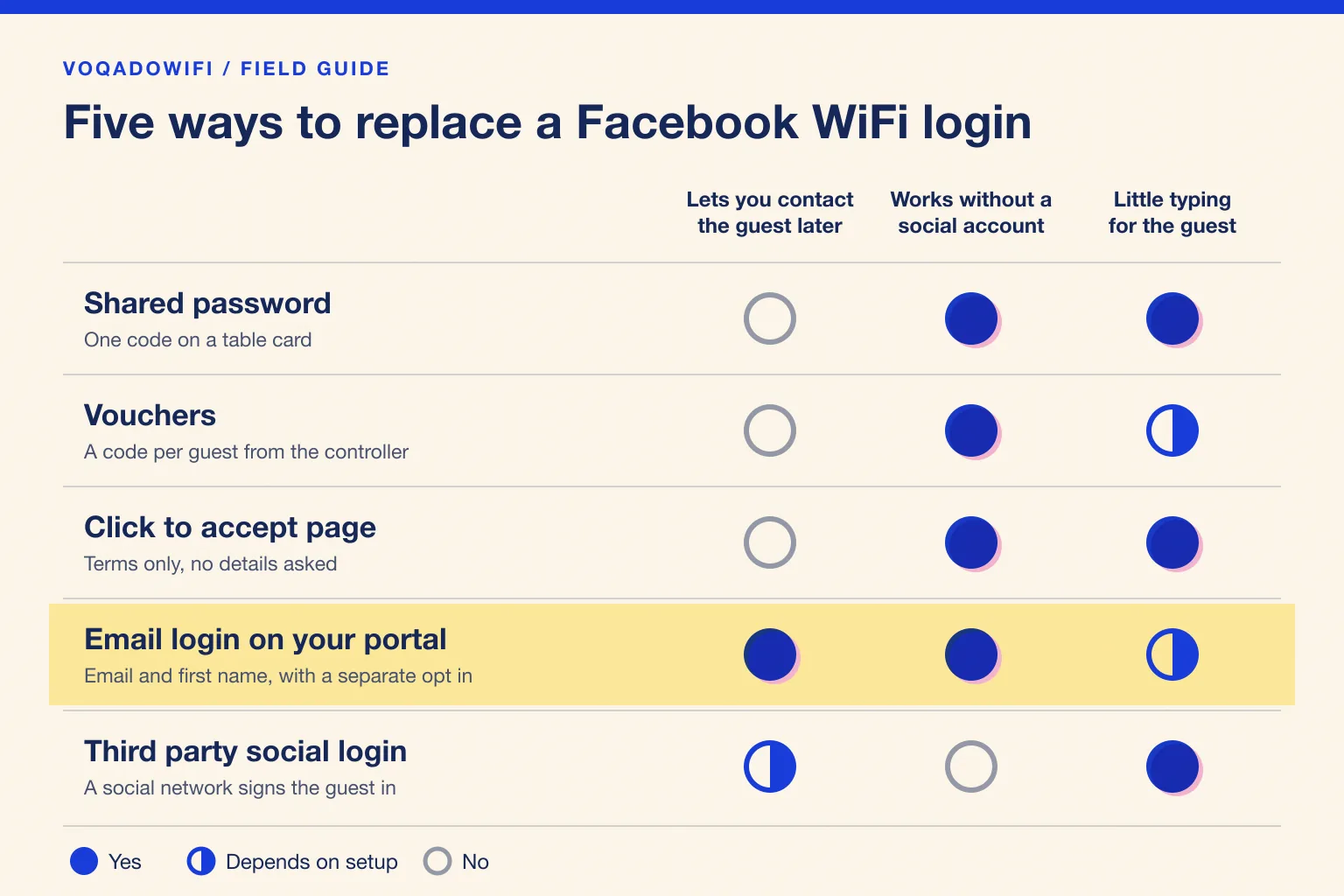
The five replacements
1. Shared password
One password on a table card or behind the bar. It is the fastest to set up and the easiest for guests. It also tells you nothing: you cannot tell a regular from a first visit, and the password travels well beyond your venue once it is on a photo of the menu. Choose it only if you have no interest in hearing from guests again.
2. Vouchers
A code per guest or per stay, generated by the controller. Omada's Hotspot portal describes a voucher as a unique code generated by the controller for a set duration (TP-Link Omada, portal authentication), and UniFi's hotspot tools offer vouchers too (Ubiquiti, UniFi hotspots and captive portals). Vouchers suit hotels that hand one over at check in, and events with a known guest list. They still give you no way to contact anyone, and someone has to print or hand out codes.
3. Click to accept page
A login page with your terms and a single button. Omada's No Authentication type still shows the login page but asks for nothing (TP-Link Omada, portal authentication). It records that a guest accepted your terms, which is useful, and it is almost as fast as an open network. There is nothing to follow up with afterwards.
4. Email login on your own portal
An external portal that asks for an email address and, usually, a first name, with a separate choice about marketing. Omada supports this through its External Portal Server option, and UniFi through its external portal setting. This is the only option of the five that gives you a list of guests you can write to with their permission, and nobody else sits in the middle of the sign in. The cost is a few seconds of typing at the first visit.
5. Third party social login
Some guest WiFi providers still offer sign in through a social network account. It is quick for guests who are already signed in on their phone, and it replaces the old habit most directly. The trade offs are real: guests without that account need another way in, the social network becomes part of every login, the network's own sign in pages have to be reachable before the guest is authorized, and what it shares about the guest depends on its rules, not yours. Marketing permission still has to be asked for separately.
Which one fits your venue
- Restaurants and cafes that want to bring guests back: email login with an unticked marketing box. If you will never send an email, a click to accept page is honest and quick.
- Bars, lounges and nightlife: email login, with sensible limits on how often you write, because these guests return often and notice when they are messaged too much.
- Hotels: vouchers for stays where the WiFi is part of the room, or email login in the lobby and restaurant where you want a relationship with non resident guests.
- Event venues: vouchers for ticketed events, email login for public spaces.
What a good email login looks like
This is how VoqadoWiFi does it, as a reference point for any provider you compare.
- Two fields. Guests sign in with an email address and a first name.
- WiFi without strings. The guest gets online whether or not they tick the marketing box. The box starts unticked, and the choice is stored with the wording shown, the time and the source. Accepting the WiFi terms is never treated as marketing consent.
- A short walled garden. Only www.voqadowifi.com and voqadowifi.com need to be reachable before login, which keeps the portal fast and predictable. The walled garden domain list has the details.
- Regulars skip the form. A recognised device goes straight through within the auto login period, 30 days unless the venue changes it.
- Limits on messages. By default a venue sends at most one message in 7 days and four in 30, never between 21:00 and 09:00 venue time, and every email has a one tap way to stop.
- Your hardware. It runs on TP-Link Omada and Ubiquiti UniFi networks only. If you are on another brand, check our hardware compatibility notes first.
The Starter plan is free for one location and 500 guest logins a month; Growth is $49 a month for 3 locations and 5,000 logins. Current limits are on the pricing page. For the background on why the category is still called social WiFi, see what social WiFi means now.
Switching without a night of broken WiFi
- Build the new portal first with your logo, terms and marketing wording, before touching the live network.
- Test it on a second guest network with a phone you control, on both an iPhone and an Android device. If the login page does not appear, our checklist for a guest WiFi login page that is not showing narrows it down.
- Switch the real guest network during a quiet hour, then remove the old login configuration so nothing points at it again.
- Update anything printed. Table cards and stickers that mention the old login or a password should go. A WiFi QR code that respects your portal is a good replacement.
- Leave old lists alone until you have checked them. If you collected guest emails some other way in the past, read our guest email list migration checklist before importing anything, because the consent behind an old list rarely matches a new one.
If you are moving from another social WiFi provider rather than from Facebook WiFi itself, our switching guide covers exports and timing.
Marketing consent rules depend on where your venue and your guests are. This is general information, not legal advice; our GDPR guest WiFi guide is a starting point for European venues.
The short version
Facebook WiFi is gone and is not coming back. A password or voucher replaces the access; only an email login on your own portal replaces the reason you had a login page in the first place. Pick the option that matches what you will actually do with the guest relationship, test it on a spare network, and switch during a quiet hour.
Get the free Guest WiFi Growth Kit
A diagnostic worksheet, signage copy guests can follow, a campaign brief and a monthly scorecard. Yours to print and share with your team.
Share this article