A restaurant WiFi QR code should make the first step easier: joining the right guest network. Your captive portal can still handle the next step, such as accepting network rules and choosing whether to receive email offers.
The important distinction is between a QR code that shares network connection details and one that opens a website address. Neither is automatically a replacement for your portal. This guide shows how to choose the right code, print useful instructions, and test the complete journey before putting a sign on every table.
Understand what the code actually does
A WiFi network QR code normally contains the network name, security type and, for a password-protected network, its shared password. A compatible phone uses that information to join the network. Android’s own sharing feature follows this approach: another device scans a code to join the same network. Google’s WiFi sharing instructions
Put this guide to work
Free worksheets, campaign templates and a venue growth calculator. No email gate.
Captive-portal authorization is a separate step. A phone can be associated with your access point while its access to the wider internet is still restricted. Apple’s captive-network instructions describe joining the network and then completing the login screen. Apple’s captive-network guide
Consequently, sharing your guest network’s password in a QR code does not inherently bypass a correctly enforced captive portal. It supplies the network credential. Your controller’s portal rules still determine what happens next.
A website QR code behaves differently. It opens a URL, perhaps your menu or a WiFi help page. A guest scanning it while using mobile data may simply open that page over the cellular connection. Opening a website does not, by itself, join your restaurant’s WiFi or authorize that device on it.
Choose one clear job for each sign
Use a network QR code when your aim is to save guests from typing an SSID or password. Label it “Join guest WiFi,” then explain that a welcome screen follows.
Use a URL QR code when your aim is to open instructions, a menu or a signup page. Label that destination accurately. If it is a WiFi help page, include the network name and manual joining instructions on the printed sign too. Otherwise, a guest with no mobile data may be unable to open the help they need.
Do not copy a one-time portal URL from a staff phone into a permanent QR code. Depending on the implementation, the URL can contain session-specific information or a return address. Ask your provider whether it supports a stable, guest-facing entry link and what a device must do before that link works.
| QR type | What it helps a guest do | What still needs checking |
|---|---|---|
| Guest network details | Join the intended SSID | Portal appears and authorization is enforced |
| WiFi instructions URL | Read joining instructions | Page works before connection or over mobile data |
| Menu URL | Open the menu | Sign does not imply it connects the phone to WiFi |
This comparison describes connection behavior, not measured conversion results.
Prepare the network before generating anything
Confirm the exact guest SSID with whoever manages your Omada or UniFi network. Check spelling, capitalization, security type and current guest password. Never generate the restaurant’s public sign from a phone connected to the staff, POS or management network.
Then verify the portal is assigned to the intended guest network. UniFi supports hotspot configuration for an SSID or network. Omada’s portal configuration also selects the relevant SSID or network; its documentation separately identifies pre-authentication resources and authentication-free clients. These settings matter more to portal enforcement than the QR artwork. UniFi hotspot documentation, Omada portal configuration
Ask your installer to check these questions:
- Does the portal cover every access point broadcasting this guest SSID?
- Are any test devices exempt from authentication?
- Are pre-authentication access rules limited to resources guests genuinely need?
- Can an existing authorized session reconnect without seeing the portal again?
- Are guest traffic and business systems separated as intended?
The last two questions prevent misleading tests. A staff phone with an active session may get online immediately even when a brand-new guest would see the portal.
Create a code without exposing business credentials
For a network code, use your device’s supported WiFi-sharing feature or a trusted QR generator that explicitly supports WiFi connection details. If using a generator, check where the information is processed before entering a password. An offline tool avoids sending the credential to a generator service.
A shared guest password printed as a QR code is still a shared password. Anyone who can photograph or decode the sign can learn it. That may be acceptable for a public guest network; it is unsuitable for keeping a business-only credential private.
Generate the code from verified details, save a high-quality image or vector file, and decode the saved file with a second device before printing. Confirm it identifies the guest network rather than an unrelated URL. Do not change your wireless security settings simply to accommodate a generator that lacks the right option.
Keep a small record with the SSID, sign version, issue date and person responsible for replacing it. When you change the guest password or network name, review every copy: table tents, windows, menus and event signage.
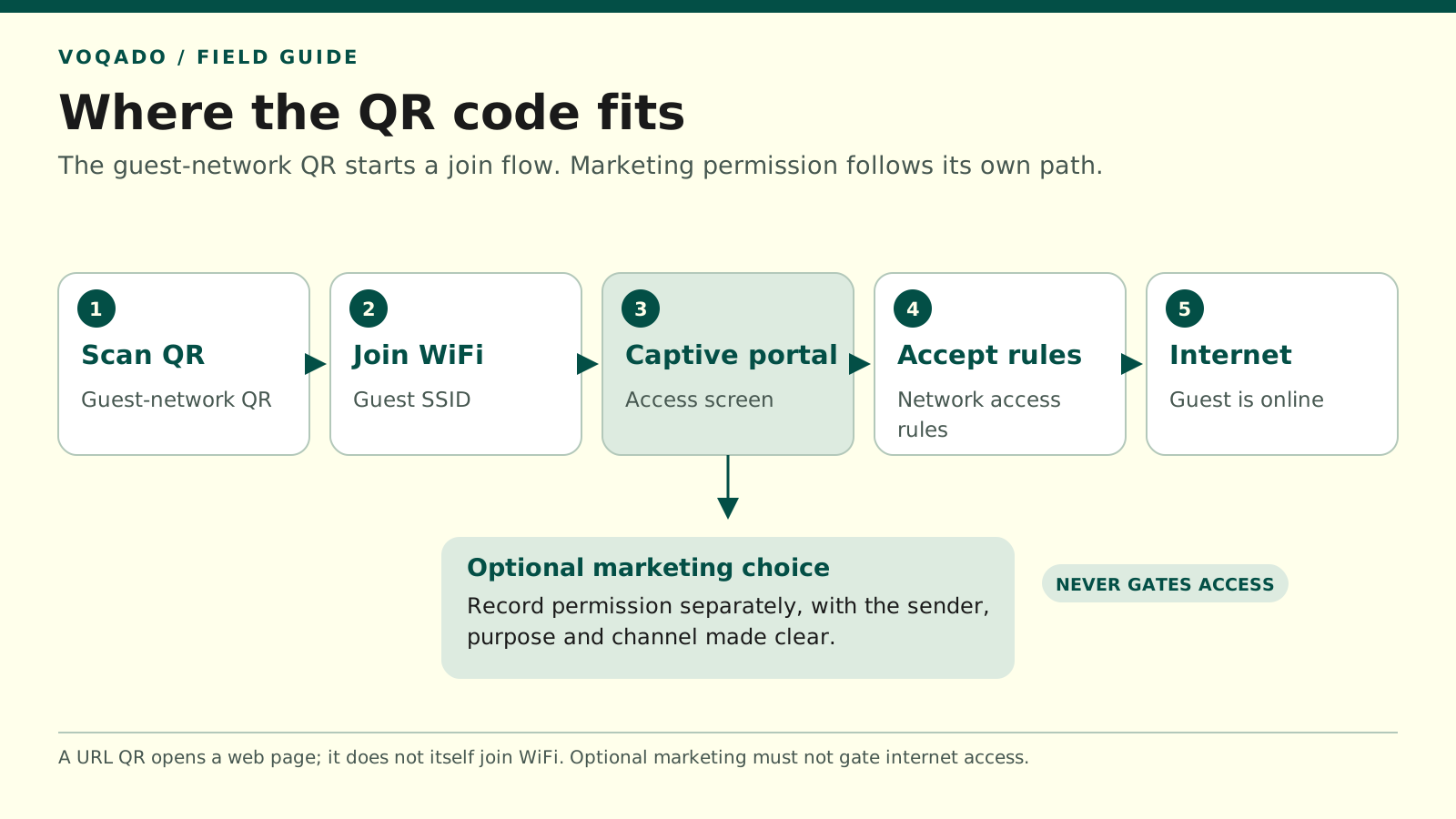
A guest-network QR begins the WiFi connection flow. A URL QR only opens a web page. Marketing choice stays separate from access.
Give guests instructions that match the flow
Here is editable sign copy for a network QR code:
> Guest WiFi > > Scan to join [Guest Network Name] > > Then open the WiFi welcome screen and follow the connection steps. > > No scanner? Choose [Guest Network Name] in your WiFi settings. Ask our team if you need help.
If a guest password is required and you want it visible as a manual fallback, add it beneath the network name. If you prefer staff to provide it, make sure the team knows where to find the current version.
Use high contrast, a clear margin around the code and a size that works at the actual scanning distance. Test the printed version under dining-room lighting. A code that scans from a laptop screen can fail on a glossy table tent with glare or a folded edge.
Keep optional marketing separate from connection instructions. Avoid “Scan to subscribe and get online” if guests can use WiFi without subscribing. The UK ICO specifically identifies a café’s compulsory WiFi marketing consent as invalid where marketing is unnecessary to provide the connection. Check the rules that apply to your venue and guests. ICO guidance on freely given consent
Run the complete acceptance test
Use both an iPhone and an Android phone if available, including a device without an existing authorized session. If you reset a test session, use your provider’s supported procedure; forgetting the SSID alone may not clear controller-side authorization.
Work through this checklist from a guest table:
- Scan the printed code and verify the proposed network name.
- Join it and confirm the captive welcome screen appears.
- Before completing the portal, verify ordinary internet access remains restricted as intended. Temporarily disable mobile data on your own test phone so cellular fallback cannot hide a problem.
- Open the linked acceptable-use policy and privacy notice before authorization.
- Connect without selecting optional marketing and confirm internet access works.
- Repeat with a test address you control and affirmative marketing permission; check the recorded choice separately from network access.
- Reconnect during and after the configured session period; document the expected difference.
- Try the manual instructions without scanning the code.
Also ask a colleague who did not design the sign to use it. Where they hesitate is useful evidence for improving the wording.
Troubleshoot the failed step
If scanning fails, inspect print contrast, size, glare and damage. If joining fails, recheck the encoded SSID, password and security type.
If the phone joins but no portal appears, check for an existing authorized session, an exempt device, the wrong SSID or portal availability. On iPhone, Apple documents opening WiFi settings, selecting the network’s information button and choosing Join Network when needed. Do not ask guests to bypass a certificate warning.
If the portal completes but the internet still fails, the problem is beyond the QR code. Check the authorization response, controller connectivity and upstream service with your network provider.
For a VoqadoWiFi deployment, use the relevant Omada or UniFi setup guide alongside this checklist. The finished sign is ready when a new guest can move from scanning to connection while the portal continues to enforce the intended access rules.
Share this article