
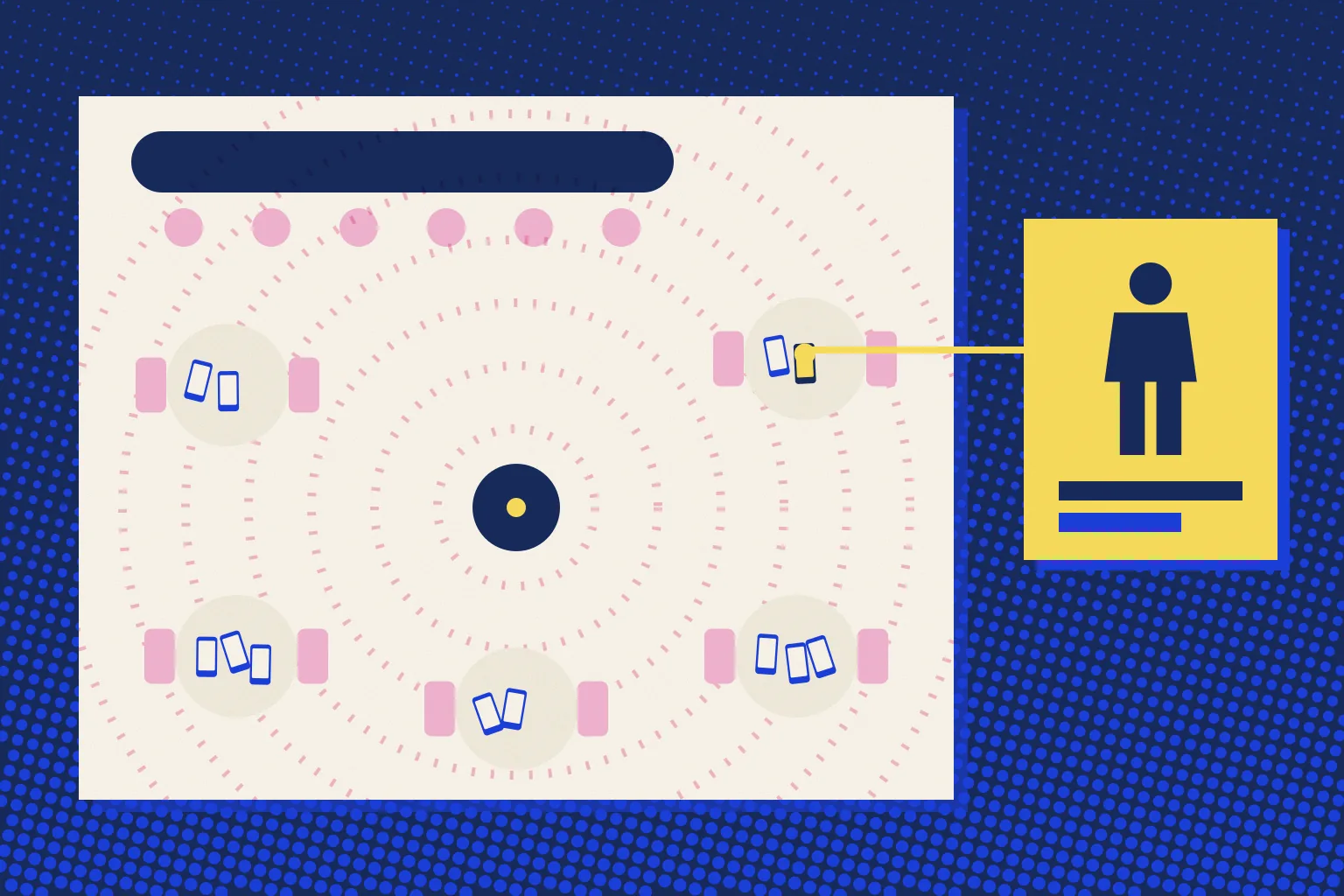
Venue owners ask who is on their guest WiFi for three different reasons. Something is slow and they suspect one device is taking the whole line. They want a sense of how busy the network is. Or they want to know who their guests actually are.
Your controller answers the first two well. It lists every device on the network, which access point it is using and how long it has been there. It cannot answer the third, because a device is not a person. This guide shows where to look on TP-Link Omada and Ubiquiti UniFi, what each list can and cannot tell you, and how to see names and visits instead of addresses.
Devices, not people
Every phone on your WiFi is listed by its MAC address, the identifier the network sees for that device. For years that address was fixed, so the same phone looked the same on every visit. That is no longer a safe assumption.
Put this guide to work
Free worksheets, campaign templates and a venue growth calculator. No email gate.
Modern phones use private addresses. Apple documents a separate private address for each network. On iOS 18 and later there is a Fixed mode and a Rotating mode, and Rotating is the default on open or weakly secured networks (Apple, private WiFi addresses). Android randomises addresses too, with behaviour that depends on the version and the network (Android, MAC randomization behaviour).
So a list of 40 addresses is a list of 40 devices seen in a window of time. It may be fewer people, because some guests carry two devices, or the same people seen twice, because an address changed. Our article on private WiFi addresses and guest analytics goes deeper into what that means for your numbers.
On TP-Link Omada
Omada keeps two lists that matter here.
Clients. Open Clients in the controller to see the devices connected in the chosen site. TP-Link describes the page as showing all connected wired and wireless clients with their general information, filtered by connection type, band and network (TP-Link, monitor and manage the clients). For each device you get its IP address, MAC address and active time, plus the network name and radio band it is using (TP-Link, view client information).
Omada separates two kinds of wireless client: users connect without portal authentication, and guests are the clients that have passed it (TP-Link, view client information). If your guest network has a captive portal, guests are the devices that got through it. Click any client to open its properties; the History tab shows that device's connection history.
To see the clients on a single access point instead, open Devices, click the access point and look at its client list. That is the quickest way to find out whether one room or one terrace is crowded.
Hotspot Manager. Portal logins have their own list. Open Hotspot Manager from the Sites menu and choose Authorized Clients. TP-Link says it shows clients authorized by the portal, including expired ones and those still within their valid period, and lets you extend a client's period, disconnect it or delete the record (TP-Link, monitor and manage the clients).
Menu names move between controller versions, so if yours look different, check the user guide for your version (TP-Link, Omada controller user guide v6). The Omada setup hub covers the portal side.
On Ubiquiti UniFi
In UniFi Network, the client list shows the devices connected to your networks. On a network with a hotspot portal, a device that joins is treated as a guest and is not authorized until the portal lets it online. Ubiquiti's External Hotspot API documentation describes that state and how to read a client's authorization status, including when the authorization expires. The general setup is in Ubiquiti's hotspot and captive portal guide.
If your portal is VoqadoWiFi, each authorization goes through your controller, so the guest you see authorized in UniFi is the same visit recorded on our side. The UniFi setup hub has the details.
What the controller cannot tell you
| Question | Controller list | Portal login |
|---|---|---|
| How many devices are online now? | Yes | Not its job |
| Which access point is busiest? | Yes | No |
| Is one device using too much? | Yes, from its activity | No |
| Who is this guest? | No, only an address | Yes, the name and email they typed |
| Have they been here before? | Only if the address did not change | Yes, by their email |
| Can I write to them after the visit? | No | Only if they said yes to marketing |
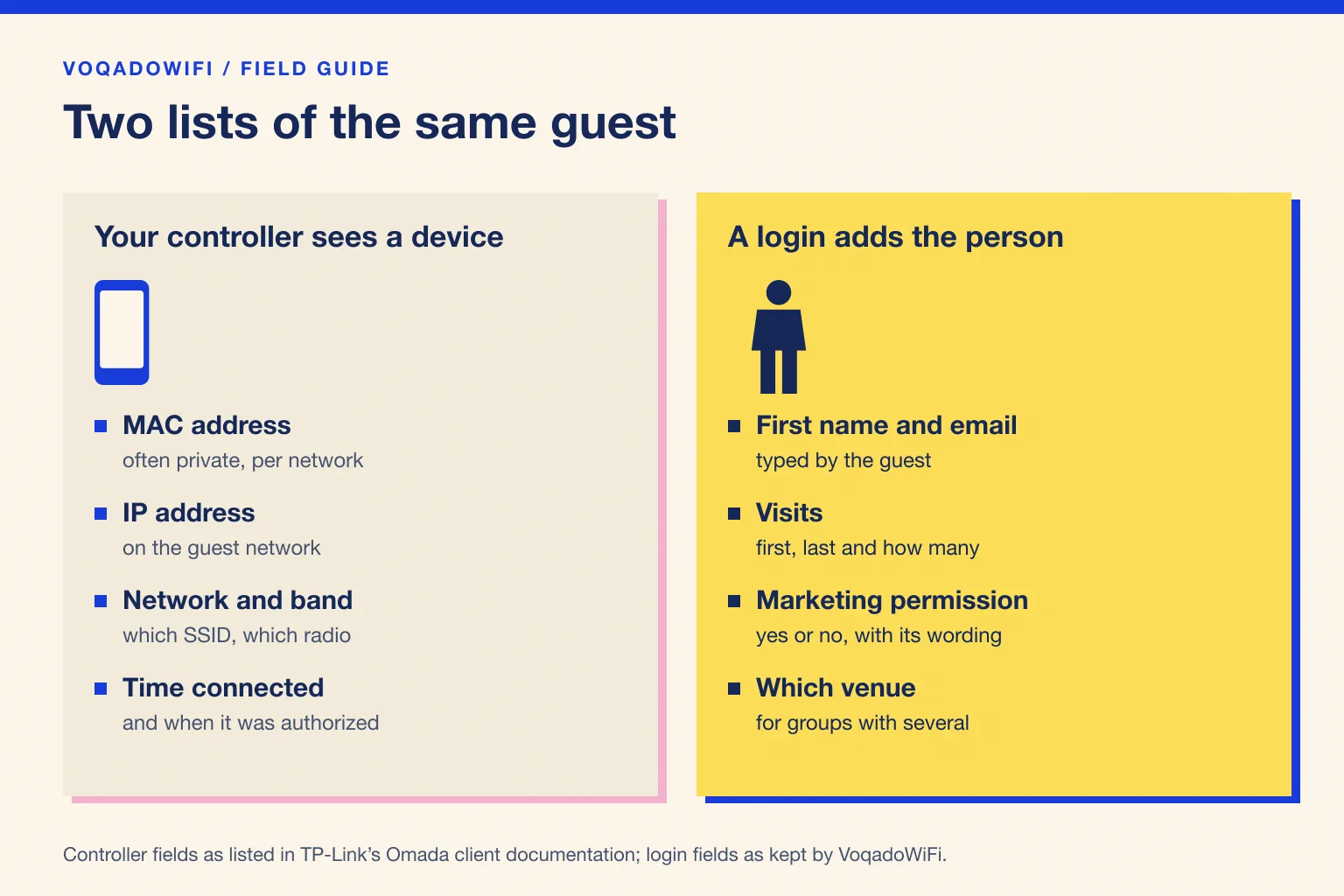
Some people try to bridge the gap by matching addresses to faces or by reading device names. Private addresses break the first, and device names are set by the owner, so neither is reliable, and both are a poor way to treat guests.
Seeing names and visits instead
The honest way to know who your guests are is to ask them, once, at the login page. A guest who signs in with an email address and a first name becomes a record you can recognise on the next visit, even if their phone shows the network a different address.
In VoqadoWiFi, that record lives in the guest CRM. For each guest you can see their email, first visit, last visit, number of visits and the location they visit most, and whether they agreed to marketing emails. Guests are grouped as New, Returning, Regular, VIP and At Risk, so the question "who are my regulars?" has an answer without reading a list of addresses.
Two other screens answer the operational questions:
- Portal Health shows each attempt to let a guest online and whether your controller accepted it, which is where to look when a guest says the WiFi will not let them in.
- Analytics shows logins over time and your busiest days, without counting devices.
None of this replaces the controller. You still go there for access points, channels and bandwidth. The portal adds the person to the device. For how that turns into return visits, see tracking repeat visits with WiFi.
When one device is slowing everyone down
If the question behind "who is connected" is really "why is the WiFi slow", find the busiest devices in the client list and check which access point they are on. The lasting fix is not to hunt devices one by one but to set a per client rate limit on the guest network, so no single phone can take the whole line. The bandwidth management guide covers rate limits on Omada and UniFi.
If you need someone off the network now, Omada's Authorized Clients list can disconnect a portal guest, and they will have to sign in again to reconnect. Keep the guest network on its own VLAN as well, so guests can never reach your till or office computers; the guest VLAN guide explains the setup.
A word on privacy
Looking at which devices are on your network is normal network management. Looking at what guests do online is a different matter, and guest WiFi tools are not built for it. Tell guests what you collect in the privacy notice linked from your portal, keep guest records only as long as you need them, and give guests a simple way to opt out. Our WiFi data retention guide has practical retention windows, and the GDPR guide for guest WiFi covers consent.
The short version
- Omada: Clients for devices online now, Hotspot Manager then Authorized Clients for portal guests, including expired ones.
- UniFi: the client list for devices, with guests unauthorized until the portal lets them online.
- Both: you see devices, not people, and private addresses mean one guest can look like several.
- To see people: ask at the login page, then read names, visits and marketing permission in a guest CRM.
Next step: connect your Omada or UniFi controller to a free Starter account and see your next guests by name. Create a free account, no card required.
Get the free Guest WiFi Growth Kit
A diagnostic worksheet, signage copy guests can follow, a campaign brief and a monthly scorecard. Yours to print and share with your team.
Share this article